Export your Financio data to keep backups or analyse your finances in external tools like spreadsheets or accounting software.
Accessing Export Data
-
Click the settings (gear) icon in the top right corner.
-
In the Settings sidebar, click Export Data.
-
On the Home tab, tap the gear icon in the top left to open Settings.
-
Under Preferences, tap Export Data.
Selecting Accounts to Export
The Export Data page displays all your accounts with checkboxes. By default, all accounts are selected.
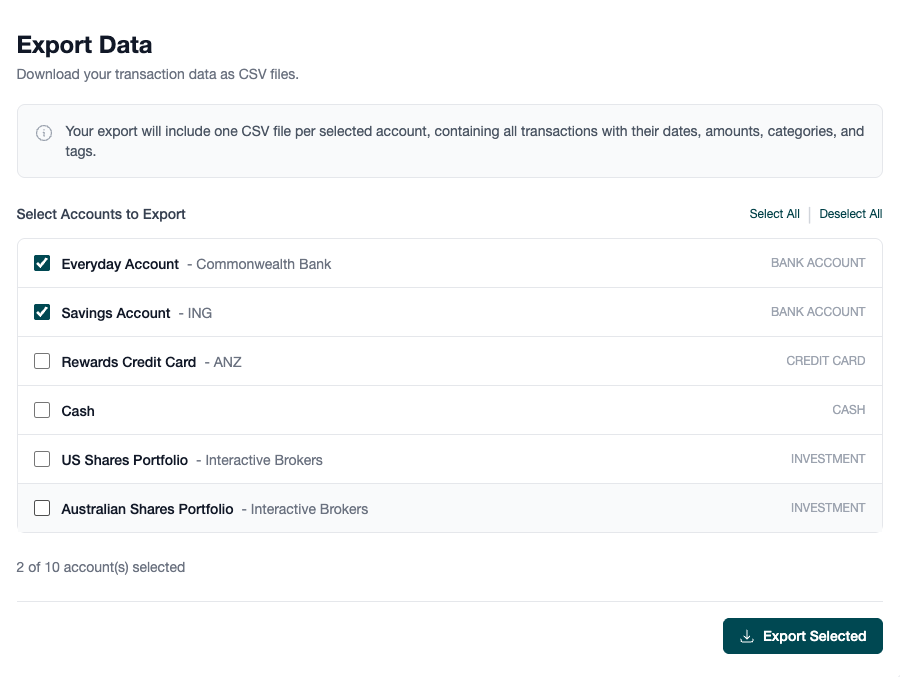
- Select individual accounts using the checkbox next to each account name
- Select All - Selects all accounts at once
- Deselect All - Clears all selections
The counter below the list shows how many accounts you've selected (e.g., "3 of 5 account(s) selected").
Exporting Your Data
-
Select the accounts you want to export using the checkboxes.
-
Click the Export Selected button.
-
A ZIP file named
financio-export.zipwill download to your device.
-
Select the accounts you want to export using the checkboxes.
-
Tap the Export Selected button.
-
The share sheet opens with
financio-export.zip. Choose Save to Files to keep it on your iPhone, or send it to another app.
Export for Tax Time
Export all your accounts at once to have a complete record of your transactions for the financial year.
What's Included in the Export
Your export contains one CSV file per selected account. Each CSV includes:
- Date - Transaction date
- Type - Whether the transaction is income, an expense, or a transfer
- Merchant - The merchant recorded on the transaction
- Description - The transaction description
- Amount - Transaction amount
- Category - The category assigned to the transaction
- Tags - Any tags applied to the transaction
Each file is named after the account it came from. Asset accounts get a second file, <Account>_valuations.csv, listing the valuation date, value, and any notes.
The CSV files can be opened in any spreadsheet application such as Microsoft Excel, Google Sheets, or Apple Numbers.
Data Privacy
Your exported files contain sensitive financial information. Store them securely and avoid sharing via unencrypted channels.
Troubleshooting
Export button is disabled
The Export button is disabled when no accounts are selected. Use the Select All link or check at least one account to enable the button.
Download not starting
Check that your browser allows downloads from Financio. Some browsers block automatic downloads - look for a notification in your address bar or try disabling popup blockers temporarily.
If the export fails on iPhone, Financio shows a "Failed to export data" alert: try again, and check your connection.