Category presets let you choose a ready-made set of income and expense categories, so you can start tracking your finances straight away without building your category list from scratch.
Choosing a Preset
When you first visit the Categories page or try to add a transaction, Financio will ask you to choose a preset. You have three options:
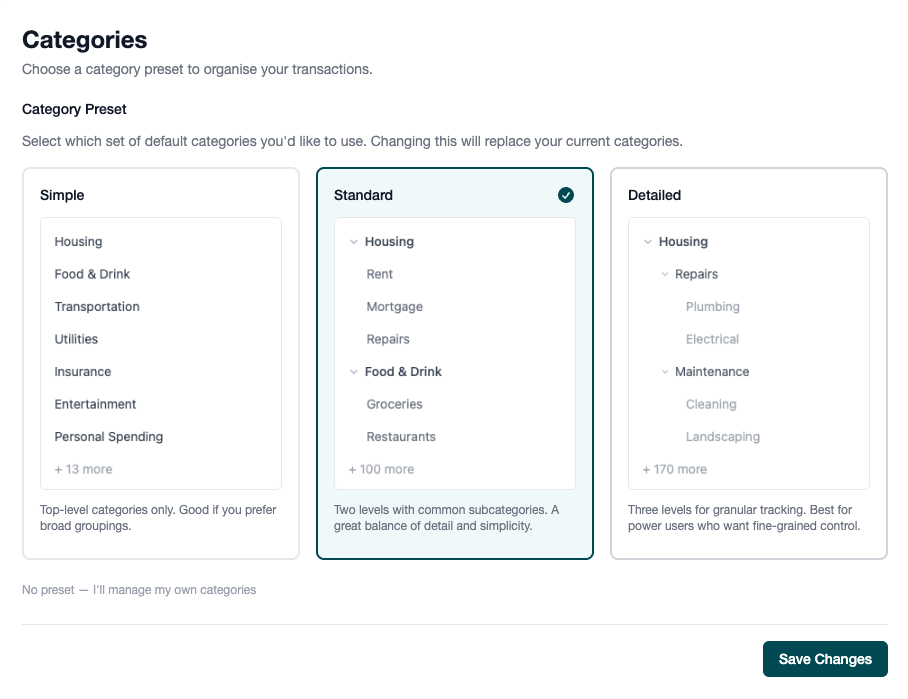
Simple (~22 categories)
Top-level categories only, with no subcategories. Good if you prefer broad groupings and don't need fine-grained detail.
Example: "Food & Drink" as a single category — no breakdown into Groceries, Restaurants, etc.
Standard (~110 categories) — Recommended
Two levels with common subcategories. A great balance of detail and simplicity for most people.
Example: "Food & Drink" with subcategories like Groceries, Restaurants, Coffee, and Take Away.
Detailed (~180 categories)
Three levels for granular tracking. Best for power users who want fine-grained control over every spending area.
Example: "Food & Drink" → "Restaurants" → "Fine Dining", "Fast Food", "Cafés".
No Preset
You can also skip the preset entirely and create your own categories manually. Choose this if you have a very specific system in mind.
Start with Standard
If you're not sure which to pick, go with Standard. It covers the most common categories without overwhelming you. You can always add, remove, or reorganise categories later.
Changing Your Preset
You can switch to a different preset at any time from Settings > Categories.
- Go to Settings from the navigation menu.
- Select Categories from the sidebar.
- Choose a new preset and click Save Changes.
What Happens to Existing Transactions?
When you change your preset, Financio asks how you'd like to handle your existing categorised transactions:
Match transactions to new categories — Transactions whose current category name matches a category in the new preset will keep their categorisation. Any that don't have a match will become uncategorised.
Clear all categorisation — All transactions become uncategorised before applying the new preset. Use this for a clean start.
Changing Presets Replaces Categories
Switching presets replaces all your current categories with the new set. Any custom categories you've created will be removed. Automation rules that reference deleted categories will have their category cleared.
After Choosing a Preset
Once your preset is applied, you can:
- Customise freely — Add, rename, reorder, hide, or delete any category. The preset is just a starting point.
- Create subcategories — Add more detail where you need it.
- Set up rules — Automatically categorise transactions from specific merchants.
See Managing Categories for details on customising your category list.