
One of the first decisions when setting up a finance tracker is how to organise your categories. Too few, and you lose valuable insight into where your money goes. Too many, and categorising transactions becomes a chore you'll eventually abandon.
That's why we've introduced category presets — three curated sets of categories designed for different levels of detail, so you can start tracking with a structure that fits your style.
The Three Presets
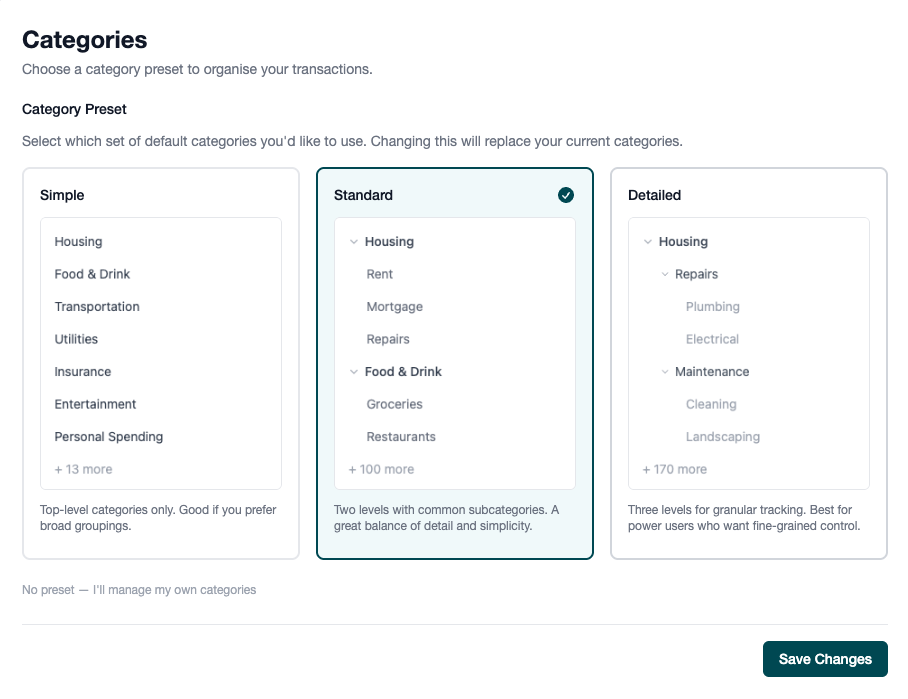
Simple (~22 categories)
The Simple preset gives you broad, top-level categories with no subcategories at all. Think of it as the "big picture" view of your finances.
Best for:
- People who are new to budgeting and don't want to feel overwhelmed
- Those who prefer spending five seconds categorising a transaction, not thirty
- Anyone who just wants to know roughly where their money goes
Example categories: Housing, Transportation, Food & Drink, Utilities, Health, Entertainment, Insurance
With Simple, every transaction fits neatly into one bucket. There's no decision fatigue about whether your coffee should go under "Cafés" or "Take Away" — it's all "Food & Drink".
Standard (~110 categories) — Recommended
The Standard preset adds a second level of subcategories to each parent. This is where most people find the sweet spot between detail and simplicity.
Best for:
- Most people — it's our recommended default for a reason
- Anyone who wants to know not just that they spent $800 on food, but how much went to groceries versus dining out
- People who plan to use reports and spending analysis
Example structure:
- Food & Drink
- Groceries
- Restaurants
- Coffee
- Take Away
- Alcohol
With Standard, your Expenses Report breaks down each area into meaningful subcategories. You can see that you spent $400 on groceries and $250 on restaurants — information that's genuinely useful when reviewing your budget.
Detailed (~180 categories)
The Detailed preset goes three levels deep, giving you the most granular tracking available.
Best for:
- Power users who want fine-grained control
- People tracking business expenses alongside personal spending
- Anyone who's been budgeting for a while and knows exactly what breakdowns they want
Example structure:
- Food & Drink
- Groceries
- Supermarket
- Markets & Specialty
- Online Grocery
- Restaurants
- Fine Dining
- Fast Food
- Cafés
- Groceries
With Detailed, you can tell the difference between a $200 weekly shop at the supermarket and $50 at the farmers' market. Whether that level of detail is useful depends entirely on your goals.
How to Choose
Ask yourself one question: How much time do I want to spend categorising each transaction?
If your answer is "as little as possible", go with Simple. If it's "a few seconds is fine, as long as I get useful reports", choose Standard. If it's "I want to track everything precisely", Detailed is for you.
The good news is that this isn't a permanent decision. You can switch presets at any time from Settings > Categories. When you switch, Financio offers to match your existing transactions to the new category names, so you don't lose your categorisation history.
What About Custom Categories?
Presets are just a starting point. Once applied, you have full control:
- Add categories that match your specific needs
- Rename any category to fit your terminology
- Hide categories you never use (they stay available but won't clutter your dropdowns)
- Delete categories you don't need, with the option to reassign transactions to another category
- Reorganise the hierarchy by indenting or outdenting categories
If you have a very specific system in mind, you can also skip presets entirely and build your categories from scratch.
Switching Presets Later
Changed your mind? No problem.
- Go to Settings > Categories
- Select a new preset
- Choose how to handle existing transactions:
- Match by name — Transactions with matching category names keep their categorisation
- Clear all — Start fresh with everything uncategorised
Try Standard First
If you're starting out, we recommend Standard. It gives you enough detail for meaningful reports without making categorisation feel like a task. You can always switch to Simple if it's too much, or Detailed if you want more.
Getting Started
Category presets appear automatically when you first visit your Categories page or add your first transaction. Choose a preset, and you're ready to start tracking.
If you've already been using Financio, you can switch to a preset from Settings > Categories — your existing transactions can be matched to the new structure automatically.
Ready to get organised? Log in to Financio and set up your categories today.